Get Marketing Insights First
Subscribe to receive actionable strategies, growth tips, and industry insights delivered straight to your inbox.

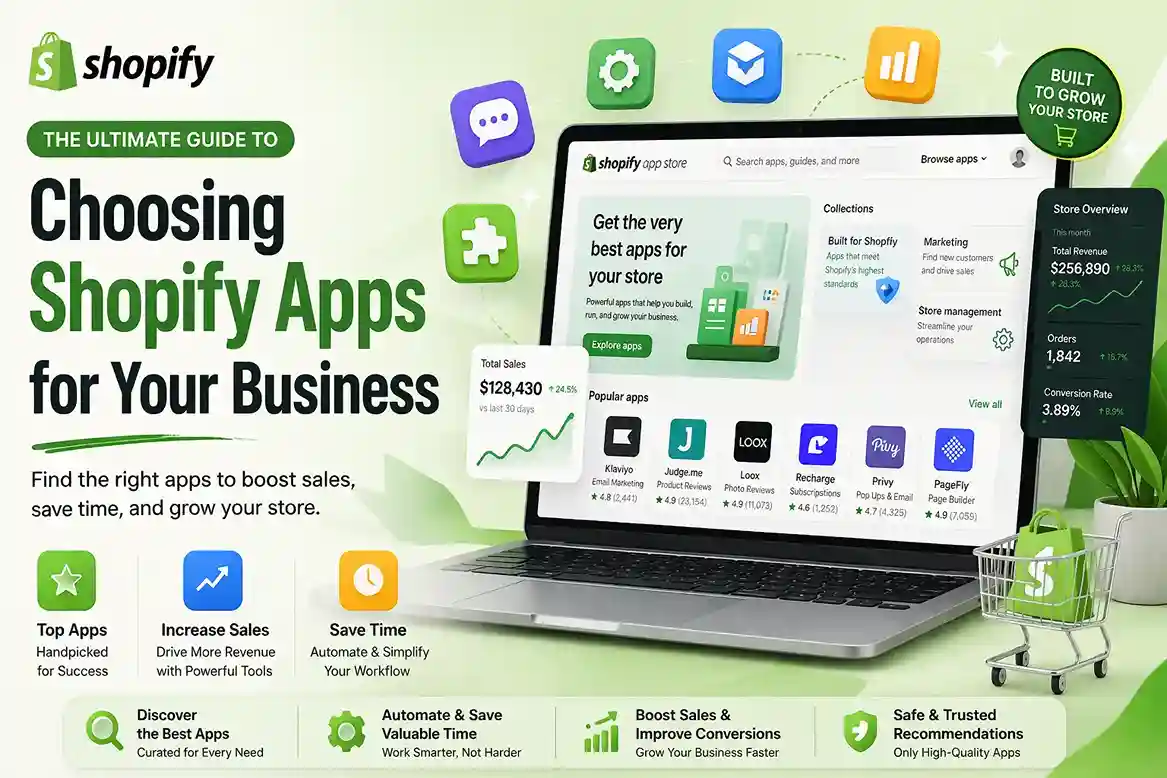
The Shopify App Store has thousands of Shopify apps that can extend your store with marketing, design, fulfillment, SEO, customer support, and more. That choice is powerful — but also overwhelming.
This guide walks you through a simple decision process so you can quickly narrow options, avoid low-quality apps, and confidently install tools that actually grow your store instead of slowing it down.
Main goal: help you decide which app to choose and where to get it — without guesswork.
Before browsing the Shopify App Store, decide what problem you’re trying to solve. Apps work best when they’re installed for a specific purpose, not just “because everyone uses them.”
Ask yourself:
How do I know which Shopify apps I really need?
Start by listing your top 3 business goals (for example: “increase average order value”, “collect more email subscribers”, “speed up fulfillment”). Only search for apps that directly support those goals. If an app doesn’t move you closer to those results, skip it.
Not every app is built to the same standard. When you browse the Shopify App Store, keep an eye out for signals that show an app is reliable and built to work smoothly with your store.
Key things to look at on each app page:
The more positive signals you see, the safer it is to trust that app with your store’s data, theme and customer experience.
Most paid Shopify apps use one of three models: a fixed monthly subscription, a one-time fee, or usage-based charges that grow with your store activity.
Before installing, always:
A slightly more expensive app can still be the best option if it replaces multiple tools or clearly boosts your revenue. Always think in terms of ROI, not just cost.
Not every app works with every store. Some Shopify apps only support specific countries, currencies, channels, or theme types. Installing an incompatible app can cause errors, missing features, or design issues.
On the app listing, look for information about:
If the app shows a “not compatible” message for your store settings, treat that as a warning. Unless you’re planning to change your business setup, it’s usually easier to find a different app that fits.
Many Shopify apps have specific requirements they check before installation. If your store doesn’t meet them, you might see a warning or be blocked from installing.
Common installation requirement types include:
If you change a store setting (like shipping countries or address) to meet a requirement, it can take a little while before Shopify updates and lets you install the app. Plan for that delay if you’re making structural changes to your store.
Before you commit to any new app, run through this quick checklist so you only install tools that improve your store instead of slowing it down.
If you can honestly tick all of these boxes, you’ve likely found a good fit. Start with a small set of core Shopify apps, track your results, and only add more tools when you can clearly see the impact.